
No Internet In Device
Having your device connected to WiFi but unable to access the internet can be frustrating—especially when you need to work, stream, or browse. This issue is common on Android phones, iPhones, laptops, and even smart TVs.
In this guide, you’ll learn why this problem happens and how to fix “WiFi connected but no internet” quickly and effectively.
What Does “Connected WiFi But No Internet” Mean?
This message appears when your device successfully connects to a WiFi network, but the network itself has no working internet connection.
In simple terms:
- ✅ WiFi connection = OK
- ❌ Internet access = NOT working
Common Causes of the Problem
Before fixing it, it helps to understand the root causes:
- Router or modem issues
- Internet Service Provider (ISP) downtime
- Incorrect network settings
- DNS problems
- Expired data plan or quota
- VPN or proxy interference
- Software bugs or temporary glitches
12 Proven Ways to Fix WiFi Connected But No Internet
1. Check If the Internet Is Down
Start with the basics:
- Connect another device to the same WiFi
- If all devices fail → issue is with your router or ISP
- If only one device fails → continue troubleshooting
2. Turn WiFi Off and On
This refreshes your connection:
- Turn off WiFi
- Wait 10–15 seconds
- Turn it back on
3. Restart Your Device
Temporary system bugs can block internet:
- Restart your phone or laptop
- Reconnect to WiFi
4. Restart Router and Modem
This fixes most network-related issues:
- Turn off router and modem
- Wait 1–2 minutes
- Turn them back on
- Wait until signal stabilizes
5. Forget and Reconnect WiFi
This clears saved network errors:
Steps:
- Go to WiFi settings
- Tap your network → “Forget”
- Reconnect using password
6. Check Router Lights and Cables
Look at your router:
- Normal lights = working properly
- Red/orange lights = connection problem
- Ensure all cables are firmly connected
7. Disable VPN or Proxy
VPNs can interfere with connectivity:
- Turn off VPN apps
- Disable proxy settings
8. Reset Network Settings
This removes corrupted configurations:
On Android:
- Settings → System → Reset → Reset Network Settings
On iPhone:
- Settings → General → Transfer or Reset → Reset Network Settings
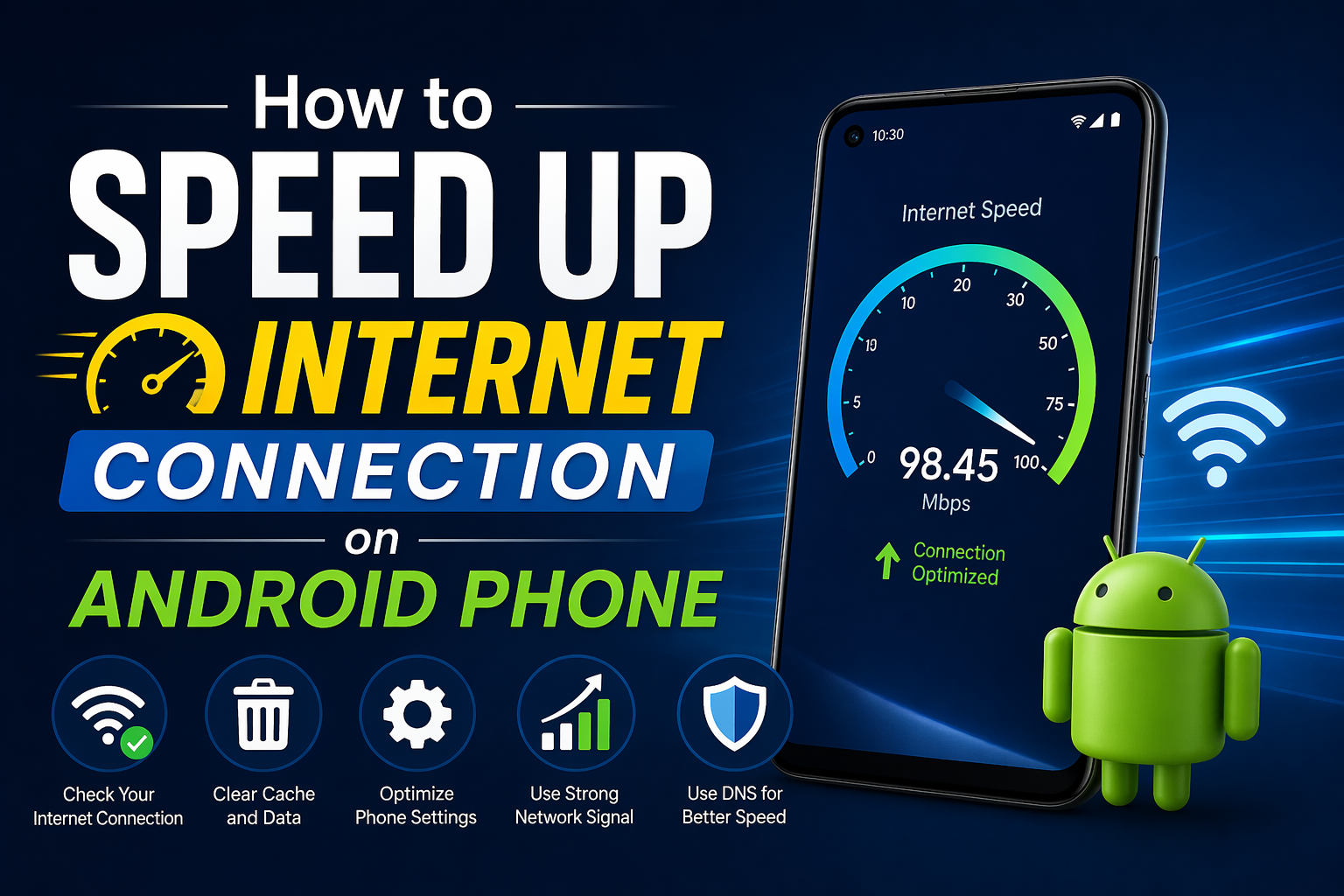
9. Change DNS Settings
Switching DNS can improve connectivity:
Try:
- Google DNS:
8.8.8.8/8.8.4.4 - Cloudflare DNS:
1.1.1.1
This often fixes hidden network issues.
10. Check Data Limit or ISP Problem
Sometimes the issue is external:
- Your internet quota may be used up
- ISP may be experiencing downtime
Contact your provider if needed.
11. Scan for Malware
Malicious apps can disrupt internet:
- Remove suspicious apps
- Run antivirus scan
12. Factory Reset Router (Last Resort)
If nothing works:
- Press and hold reset button (10–15 seconds)
- Reconfigure WiFi settings
Quick Fix Summary ⚡
If you want a fast solution, try this order:
- Restart router and device
- Forget and reconnect WiFi
- Disable VPN
- Change DNS
- Reset network settings
Tips to Prevent This Issue in the Future
- Keep your router firmware updated
- Avoid installing suspicious apps
- Use reliable DNS servers
- Restart your router regularly
- Monitor your data usage
Frequently Asked Questions (FAQ)
Why does my phone say connected but no internet?
Because your device is connected to WiFi, but the network has no active internet connection.
Can DNS fix internet issues?
Yes. Changing DNS often resolves connection errors and improves speed.
Is this a router problem or phone problem?
It depends:
- Multiple devices affected → router/ISP
- One device affected → device settings
Conclusion
The “WiFi connected but no internet” problem is common, but usually easy to fix. In most cases, a simple restart or network reset solves the issue.
By following the steps above, you can quickly restore your connection and prevent future problems.