
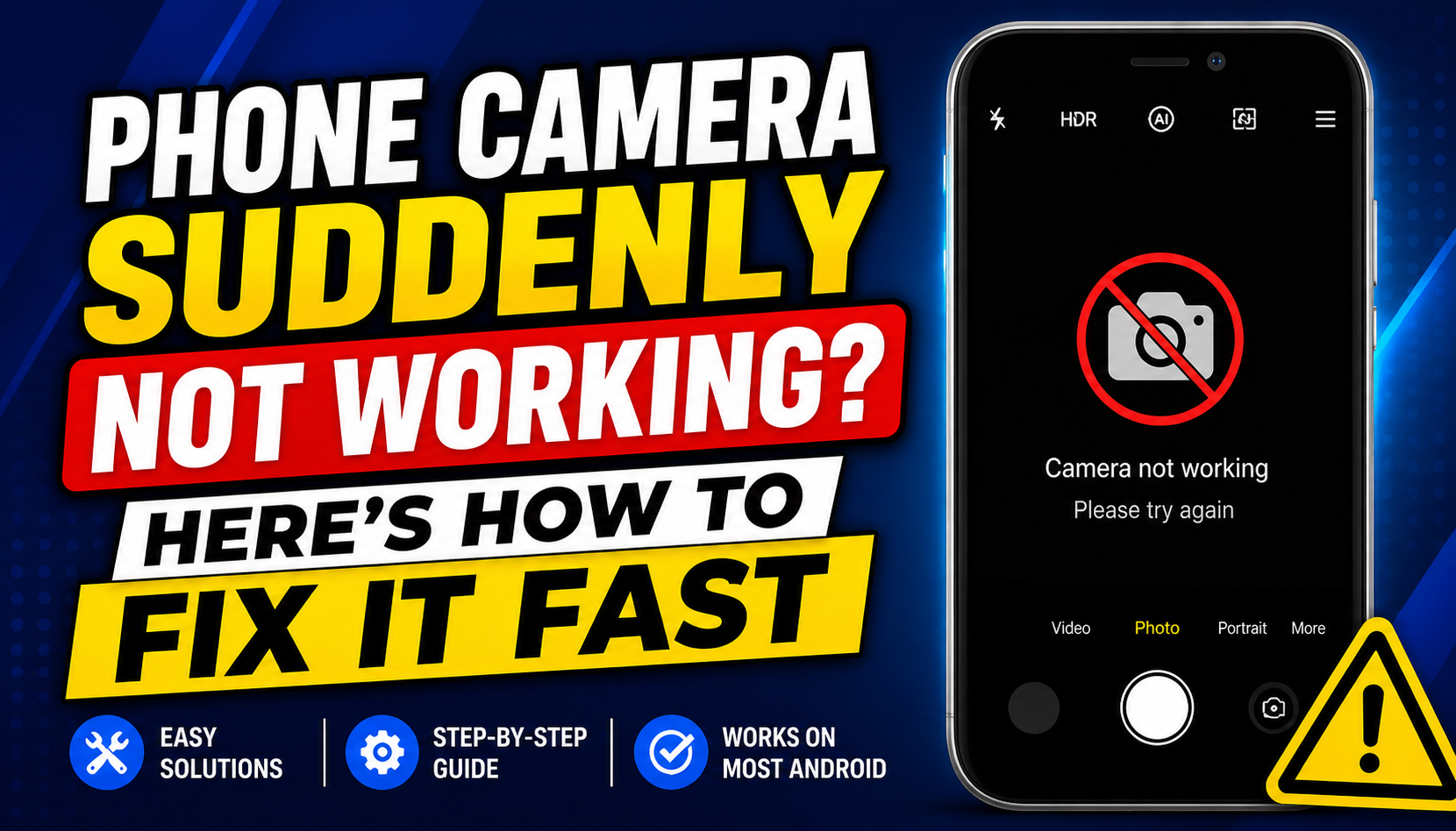
If you’ve ever faced the frustrating issue of your phone camera suddenly not working, you know how inconvenient it can be. In this article, we will explore effective solutions to get your phone camera back in action swiftly and efficiently. Let’s dive into how to troubleshoot this problem and regain the use of your beloved device.
Contents:
- Check App Compatibility and Permissions
- Restart Your Phone for a Quick Fix
- Update Your Phone Software
- Clear Camera App Cache
- Free Up Storage Space on Your Phone
- Reset Camera Settings to Default
- Seek Professional Help if Issues Persist
If you find yourself facing a situation where your phone camera is not working, don’t despair. Continue reading our article for helpful tips and tricks that can resolve the issue efficiently. We cover everything from simple settings adjustments to more complex solutions, ensuring you have the best chance to fix the problem quickly. There’s no need to miss out on capturing those precious moments!
Check App Compatibility and Permissions
If your phone camera has suddenly stopped working, one of the first things you should do is check the app compatibility and permissions set for the camera application. In some cases, app updates or changes in the device settings can lead to permission issues that affect the functionality of your camera. Start by heading to your phone’s settings and navigating to the apps section, where you can find the camera app.
Ensure that all necessary permissions are enabled, especially those related to capturing images and accessing your device’s storage. If the app compatibility is an issue, consider updating the camera app or the operating system of your phone to the latest version, as updates often address bugs that could be causing issues with the camera’s performance.A thorough check of the camera app’s permissions can resolve many unforeseen issues with camera functionality.
Restart Your Phone for a Quick Fix
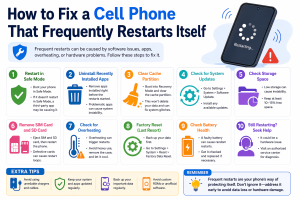
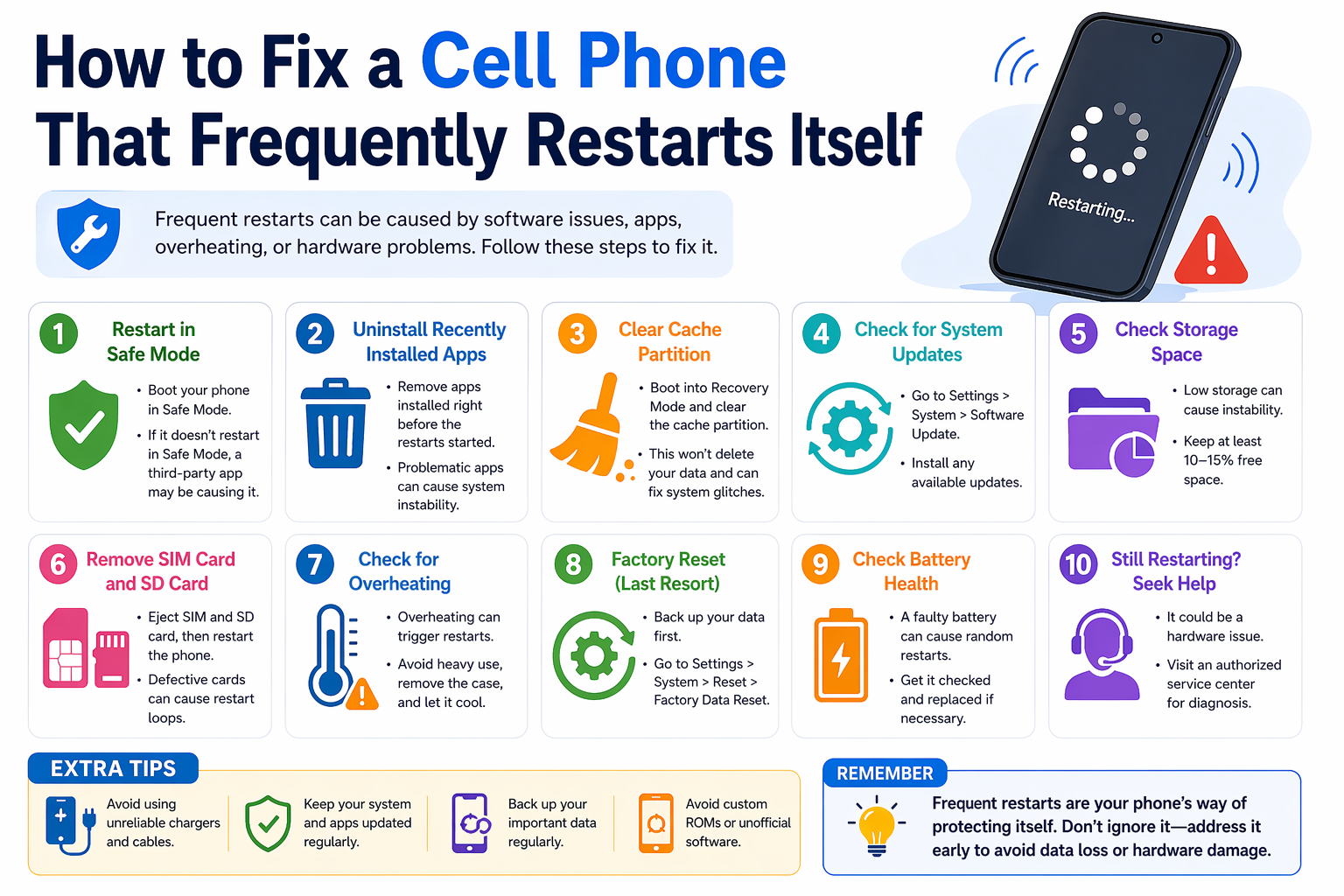
Have you ever faced the frustrating situation where your phone camera suddenly stops working? Before assuming it’s a hardware issue, one of the quickest solutions is to restart your phone. This simple step can clear minor software glitches that may be causing your camera to malfunction.
Why Restarting Works
When you restart your phone, you essentially refresh the operating system and clear temporary files. This can help in resolving conflicts between apps, including the camera application. Many users have reported that this method has resolved their camera issues swiftly.
Steps to Restart Your Phone
To restart your device, follow these straightforward steps: First, press and hold the power button until the power options appear. Then, select the reboot option. For some models, you may need to press the power button along with the volume down button. This varies based on the manufacturer.
When to Seek Professional Help
If restarting your phone does not resolve the camera issue, it may indicate a more significant problem. It’s advisable to seek professional assistance, especially if you notice other applications malfunctioning as well. Regular maintenance of your device can prevent such issues from arising in the future.
Comparison of Restart vs. Other Fixes
| Fix Method | Effectiveness | Time Required |
|---|---|---|
| Restart Phone | High | 1-2 minutes |
| Clear Camera Cache | Moderate | 3-5 minutes |
| Factory Reset | High | 20-30 minutes |
Update Your Phone Software
If your phone camera starts acting up unexpectedly, one of the first steps you can take is to update your phone’s software. Software updates are designed to fix bugs and improve functionality, and they often include essential patches that can resolve issues with the camera. Make sure to regularly check for updates in your phone’s settings, as keeping your software up to date can prevent many problems.
When you update your software, it can also enhance the overall performance of your phone, providing a smoother experience and better app compatibility. This step is fast and effective, allowing you to get back to capturing memories without delay. Always ensure that you have a backup of your important data before initiating any updates to safeguard against unexpected issues.Regularly updating your phone’s software can lead to significant improvements in functionality and resolve many common issues.
Clear Camera App Cache
One of the most common reasons for a phone camera suddenly stopping working is a corrupted cache of the camera app. Clearing the cache can resolve these issues quickly. To do this, go to your phone’s settings, find the app manager, select the camera app, and choose the option to clear cache. This simple step often restores functionality to your camera, allowing you to take pictures without further ado.
- What should I do if the camera app won’t open? If your camera app won’t open, try restarting your phone first. If that doesn’t work, clearing the app cache as mentioned can help.
- Why is my camera freezing during use? Camera freezing can be caused by insufficient storage or a glitch in the app. Ensure you have enough storage space and try clearing the cache.
- Can I recover deleted photos after fixing the camera? Unfortunately, clearing the cache does not recover deleted photos. You may need to use photo recovery tools if they are lost.
- Is it safe to clear the cache? Yes, clearing the cache is safe and will not delete your personal data or settings.
- How often should I clear the camera app cache? It’s a good idea to clear the cache every few months or whenever you notice the app is misbehaving.
Free Up Storage Space on Your Phone
When your phone camera is suddenly not working, one of the first things you should check is your storage space. Often, a lack of available storage can cause the camera app to malfunction. To free up storage space, start by deleting unnecessary apps or large files that you no longer need. Videos and photos can take up a significant amount of space, so consider transferring them to an external drive or cloud storage for safekeeping.
Another effective way to clear significant space is by reviewing download folders or cache data from apps. Clearing cache can provide immediate relief without deleting essential data. Additionally, using storage management tools available on most smartphones can help identify what is consuming your space and suggest removals.“Sometimes, a simple cleanup is all it takes to get things working again.”
Reset Camera Settings to Default
If your phone camera stops working suddenly, one of the first steps you can take is to reset the camera settings to default. This process can resolve various issues that might be affecting the camera’s performance. To do this, go to your camera settings, usually found in the settings app. Look for an option labeled Reset Settings, and confirm your action. This will restore all the adjustments you’ve made to the camera, potentially fixing the problem.
- Understanding the camera settings menu is essential for troubleshooting.
- Resetting allows you to start with default values, removing any misconfigurations.
- Some settings may conflict with app updates; resetting can clear these issues.
- After resetting, you may need to adjust settings based on your preferences.
- Ensure your device’s software is updated to prevent recurring issues.
- Check for any physical obstructions or damage that might be affecting your camera.
- If the problem persists, consider reaching out to customer support or visiting a service center.
Seek Professional Help if Issues Persist
If your phone camera problems continue despite trying various troubleshooting tips, it may be time to seek professional assistance. Sometimes, the underlying issue may not be easily fixable through standard methods. A technician can provide a thorough inspection and determine whether it’s a software glitch or a hardware malfunction.
Additionally, visiting a service center will ensure that your device is handled by qualified professionals who can guarantee that any repairs or replacements are done correctly. They have access to original parts and can often restore your phone camera to its optimal working condition.
Remember, technology can be unpredictable, and while there are many DIY fixes available, they may not always solve the problem at hand. If all else fails, a professional touch might be what your device needs.“In case of persistent issues with your phone camera, don’t hesitate to reach out for help. Professional services can save you time and frustration.”
Thank you for taking the time to read this article. We hope these tips help you navigate any camera issues on your phone effectively. Until we meet again in other interesting articles, thank you!